
Scenes Panel
Scenes help you save different model views and properties. Want to show the difference between the original model and one that's been annotated with the Markup tool? How about creating a slideshow showing off how different textures work within your model? Or what about easily viewing your model at different angles? The Scenes panel can help you do all of that.

The Scenes panel in SketchUp for iPad helps you set up your Scenes and manage the Scenes you create. At the top of the Scenes panel you'll see the following icons.
- Add Scene (
 ) - Add a new scene.
 - Update Scene (
 )- Opens the Update Scene options where you can toggle aspects of your scene on or off.

- Play (
 )- Play your customized scene animation.
 - Export Image (
 )- Opens the Export options. File Type include .png, .mp4, .usdz, .stl, and .obj.

- Animation Settings (
 )- Opens the Animation Settings to help fine tune animated scene transitions.

The rest of the Scenes panel is split up into three collapsible sections:
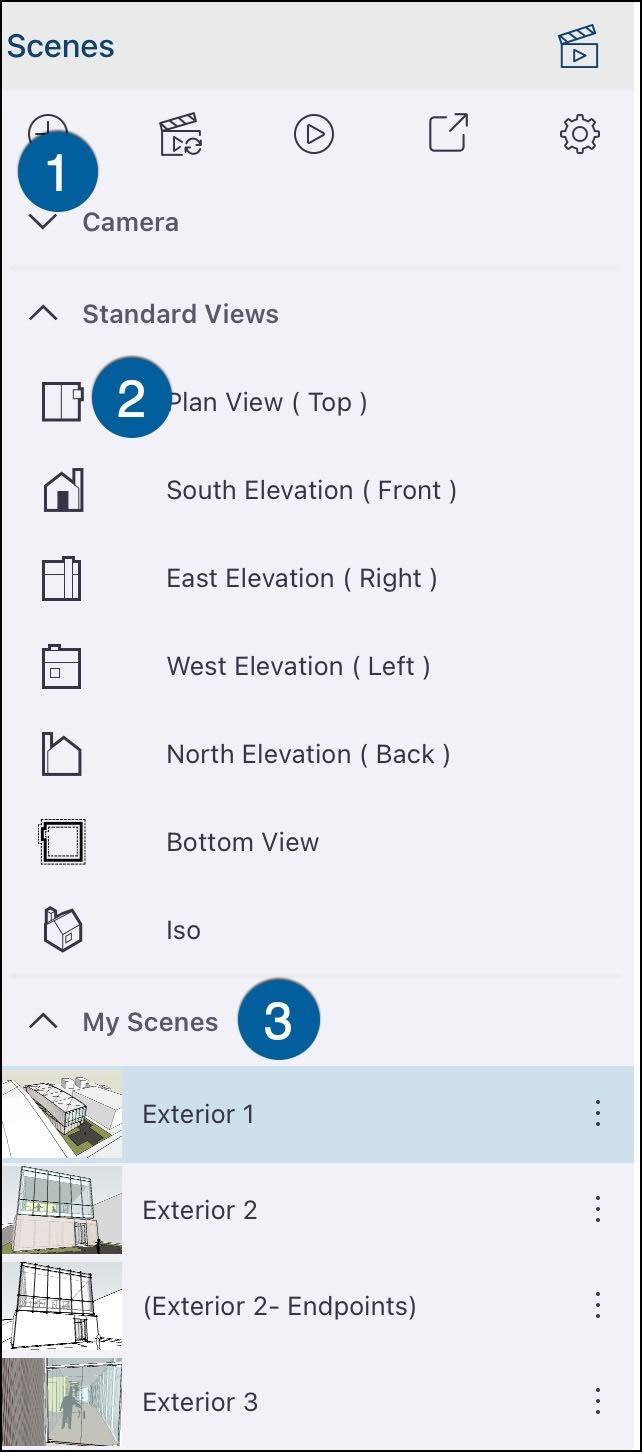 | Camera - Contains three camera angle options: Perspective, Parallel Projection, and Two-Point Perspective. Plan View (Top) South Elevation (Front) East Elevation (Right) North Elevation (Back) West Elevation (Left) Bottom View Iso Standard Views - Contains a list of different view options for your model: My Scenes - A list of all scenes created in a model. For more information on how to use Scenes in your model, see Creating Scenes . |