Erasing and Undoing
Everyone makes mistakes. In SketchUp, you can correct mistakes with the Undo command and Eraser tool.
Using the Undo Command
The Undo command reverses your most recent action. If you draw a line and then undo it, the line will disappear. If you try to copy a piece of complex geometry and accidentally stretch it instead, undoing can put things back the way they were. You can use Undo more than once to reverse a series of actions.
Undo is available under the Edit menu along with a description of the last action you performed. If you last used the Push/Pull tool, you'll see Undo Push/Pull in the Edit menu.

The default keyboard shortcut for Undo is Alt+Backspace . However, Ctrl+Z (Microsoft Windows) or Command+Z (macOS) also work.
Anything you Undo, you can Redo. When you Undo an action, the option to Redo that action will appear in the Edit menu.
Erasing Geometry
You can erase geometry from your model using the Eraser tool or Erase context command.
Note: The Eraser can help you remove geometry, and also soften, smooth, or hide parts of your model no matter when you created it. See Softening, Smoothing, and Hiding Geometry for more information on how to use those other functions of the Eraser tool.
 ) tool in a few different locations:
Getting Started toolbar
Drawing toolbar
Large Tool Set toolbar
Principal toolbar
You can use the Eraser in the following ways:
Select the Eraser tool from a toolbar and click an edge with the Eraser tool cursor. You'll erase that edge and any faces it bounds.
Tip: The Eraser tool doesn't erase faces. Faces are erased when you erase their bounding edges, opening and reshaping your geometry. See Introducing Drawing Basics and Shapes for more information on how this works.
Click and drag over multiple lines with the Eraser tool. Any line highlighted in blue will be erased once you release your mouse button.
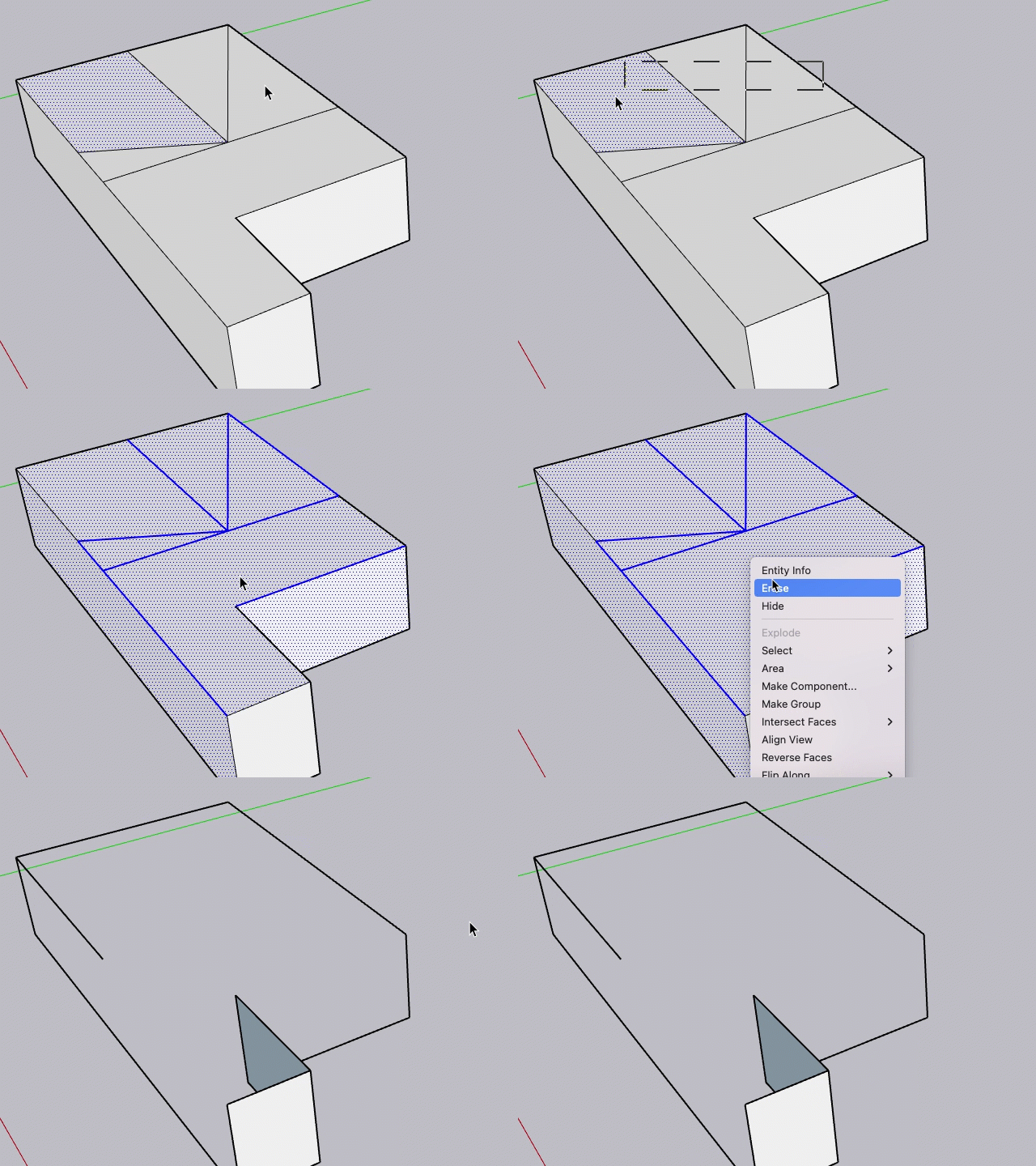
You can also use the Eraser from the context menu of a selected entity. You can also context-click an unselected face or edge and select Erase from the context menu. To remove multiple edges and faces at the same time, select the geometry, context-click your selection, then select Erase from the menu.