
Working with Dashes in SketchUp Files
LayOut lets you adjust the styling of the linework you defined in the SketchUp model, including dashed lines.
To get the most out of your model in LayOut, set up scenes that capture model views and styling, and assign tags to objects whose lines you want to style distinctly. For instance, your document could include a viewport that points to a floor plan scene where separate tags were applied to the topographic layers of the project site.

Styling Linework
The SketchUp Model panel controls how SketchUp model viewports display, and contain settings for all linework for the viewport. It also lets you adjust individual linework and visibility for tagged objects.
To get started, select the viewport. Then, select Window > Default Tray > SketchUp Model to open the SketchUp Model panel.

Setting the Viewport Line Scale
The Line Scale settings in the Viewport section define the Edge width and Dash Scale for the viewport’s linework. With these settings, you can apply a uniform Edge width and Dash Scale to all viewport lines at once.
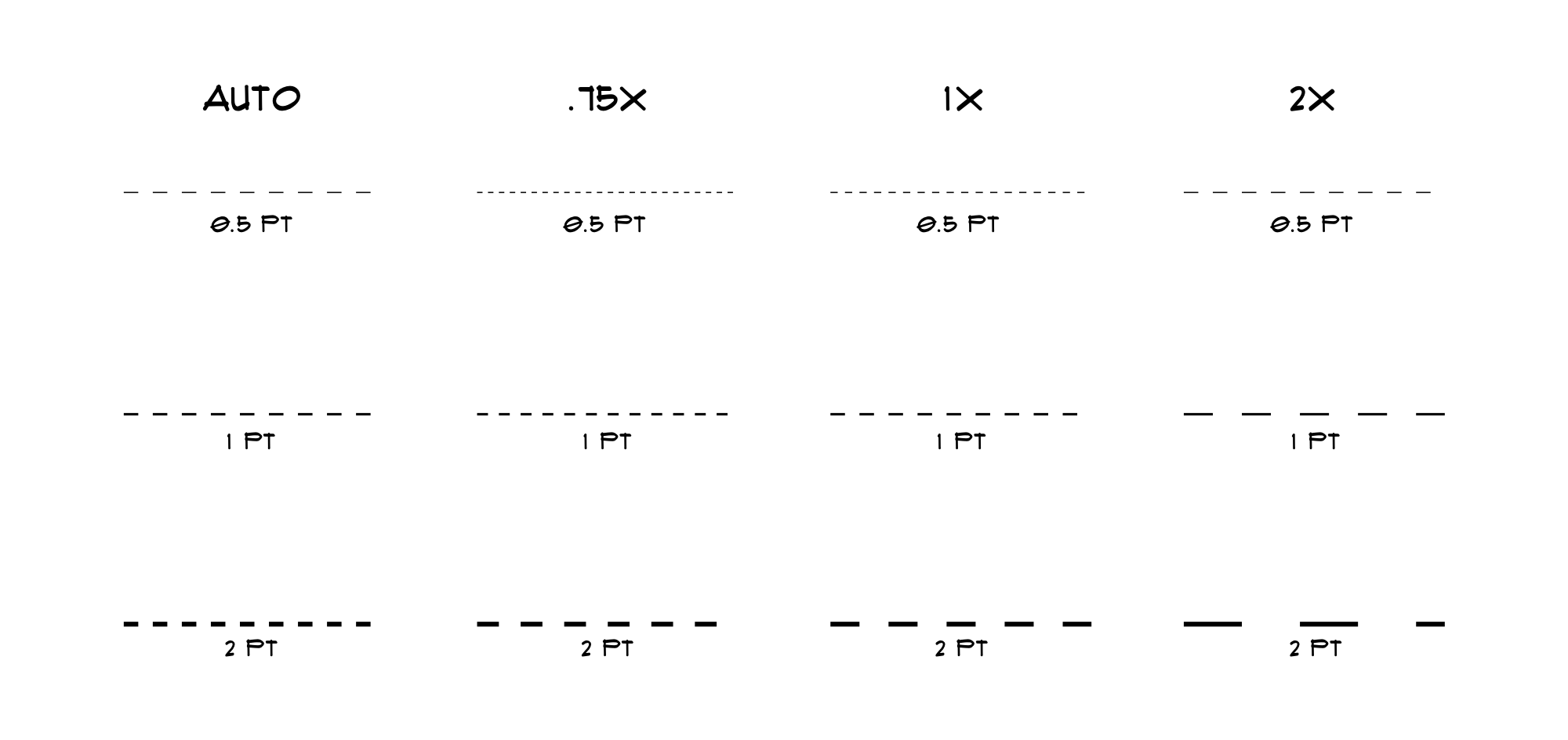
This means a 1pt Line Scale will display your SketchUp models Edges and Profile Edges at the same width they appear in SketchUp. By default, LayOut assigns viewports a 0.50 pt stroke width and the auto dash scale. If you applied a dash pattern to linework in SketchUp, the auto option preserves the scale of the pattern as you increase or decrease the stroke width. The other options apply specific line setting values.

Rendering
LayOut has the following three rendering modes for viewing the linework of SketchUp models inserted into a document. The mode affects the styling of your viewport.
Vector and Hybrid – These modes generate crisp vector linework from the edges in your model. The Vector mode is the best and most efficient for clean line drawings that don’t feature image textures. The Hybrid mode renders image textures, transparency, shadows as well as providing crisp edges.
Raster – Lines are less crisp in this mode but you can take advantage of additional display possibilities and rendering styles, such as sketchy edge styles, back edges, fog, and depth cue. Transparent faces tend to render best in Raster mode.
Modifying Linework Styling for Tags
If a SketchUp model in your document contains tagged entities, you can independently control visibility and line styles for those entities in the Tags section of the SketchUp Model panel. The Tags section provides linework styling override options for each tag.
To edit a tag's line style, select its pattern in the Line Style column. Or, if there is no pattern for the tag, select Default. The tag’s line style options replace the list of tags.
 ) to the left of the tag name. For more information on tag visibility, see Managing Changes and Updates to SketchUp Files.
When set to the Default line style, a tag inherits its Line Scale settings from the viewport.
The line styling interface contains the following settings:
Dashes: Applies a pattern to the tag linework. If you assigned a dash pattern in SketchUp, you'll see it here. If the linework isn’t associated with a pattern, you'll need to select one before you can edit the other settings.

Color: Assigns a line color through the color picker.
- Line Scale: Set to auto by default, this scale affects the rendering of the dash pattern you've chosen. The auto setting preserves the scale of the pattern as you change edge width. However, you can loosen the pattern by increasing the scale, or tighten it by decreasing the scale. Edge width assigns a line weight to the tag linework.The same Line Scale settings apply to both viewports and tags.
Click OK to save the new linework settings. Click Cancel to return to the list of tags without saving the changes. Whenever you modify linework settings, LayOut automatically renders the viewport.
Tip: If you are trying to produce LayOut drawings with specific line weights to adhere to graphical standards, set the viewport line scale to 1.0. The viewport line scale acts as a multiplier to the edge width scale you set for an individual tag. For instance, if you want geometry on a Walls tag to render at .4 pt, set the viewport line scale to 1.0 pt, and the Walls tag edge width to .4 pt. Or, leave the viewport Line Scale at .5 pt, and set the Walls tag edge width to .8 pt.
How Tag Overrides Work
LayOut and SketchUp share visibility and style settings, such as tag visibility and line style. When you edit them in LayOut, LayOut treats the viewport changes as overrides of the SketchUp model settings. You can revert to the SketchUp model settings, or update the SketchUp model with the tag overrides changes. Since models and their viewports are linked, the changes apply to all viewports in your document that use the model.
Reverting Settings
To revert to all SketchUp model settings, including those for linework, click Reset All in the Viewport section. To revert only tag settings, click Reset in the Tags section.
There are several options to revert line dash and visibility discrete overrides through the Reset dropdown in the tag’s line styling interface.
For each tag, you can:
Click Reset All to revert all line styling overrides.
Click Reset Dashes to revert line dash overrides.
Click Reset Visibility to revert a visibility override.
Explode a Viewport to Modify Individual Lines
Another way to modify linework is to explode the viewport to convert it into an editable vector drawing. This will break the connection to your SketchUp model and create LayOut entities placed into a Scaled Drawing. You can then adjust the line widths and styles of individual edges through the Stroke settings in the Shape Style panel.
To adjust linework through exploding the viewport, follow these steps:
Select the viewport.
Select the Vector or Hybrid rendering mode in the Viewport section of the SketchUp Model panel. The viewport renders again.
Context-click the viewport and select Explode. The viewport lines become vector shapes.

Use the Shape Style panel to edit the dashed lines in the exploded viewport. Learn more about the Shape Style panel in Customizing Line Widths and Styles.