
Deauthorizing Devices in the Admin Console
The options in Trimble’s My Products page can help you manage what devices you have authorized for your SketchUp account.
Note: You can only deauthorize your own activations, even if you have owner or admin access.
The My Products page provides an easy way to access the products in your SketchUp subscription. To access My Products:
Login at Trimble.com and select My Products from the menu in the upper right.
Login to your Admin Console and click My Products from the left pane.
To manage activations in My Products, follow these steps:
On the My Product page, use the search function or browse the tiles and locate the SketchUp product you want to manage.
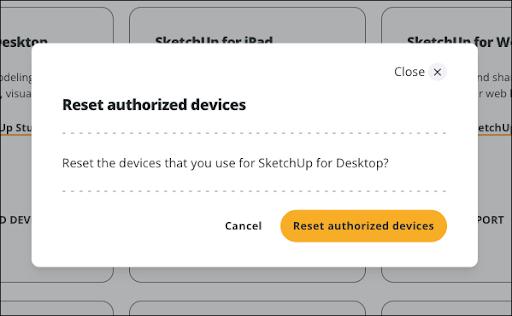
On the SketchUp for Desktop tile, click Reset Authorized Devices . This option only appears if you have reached the maximum amount of activations for your account.

- In the dialog that appears, click Reset Authorized Devices to log out of all instances of SketchUp on your devices. Clicking Cancel returns you to the My Products page without any action taken.
Click the Trimble icon in the top right corner and select Sign Out.
If you had SketchUp open on any device before deauthorizing, go to that device and follow these steps:
Sign out
Close SketchUp
Relaunch SketchUp
Sign in again using your Trimble ID.
Warning: You may still receive a message asking you to manage your activations if you do not sign out of SketchUp, close it, and restart the application.