
Navigating the Support Center
Trimble’s Support Center offers an authenticated support experience for all of your Trimble Products. Users with access to the Support Center can:
Access the Admin Console
Contact support
Submit support tickets
Check up on open support cases
Review previous support requests
Access knowledge content for all Trimble products
Navigating to the Support Center
To access the Support Center from Trimble's home page, follow these steps:
Navigate to www.trimble.com.
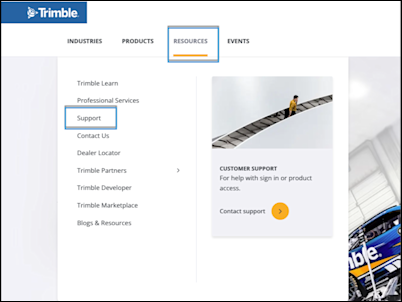
- Select Resources from the top navigation options and click Support.
You can also get to the Support page by selecting the Trimble logo in the top right corner of the page and clicking Support.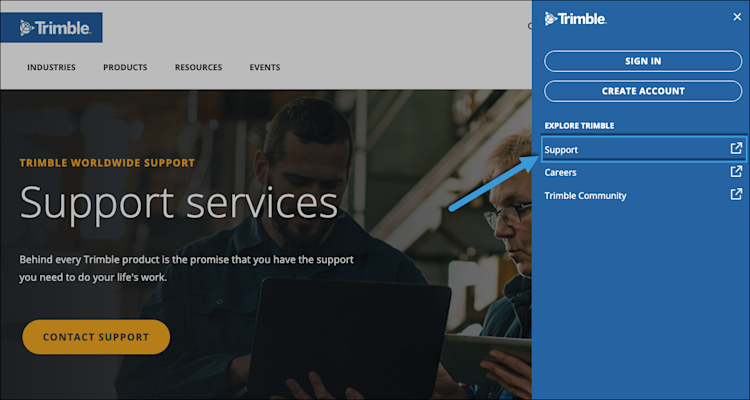
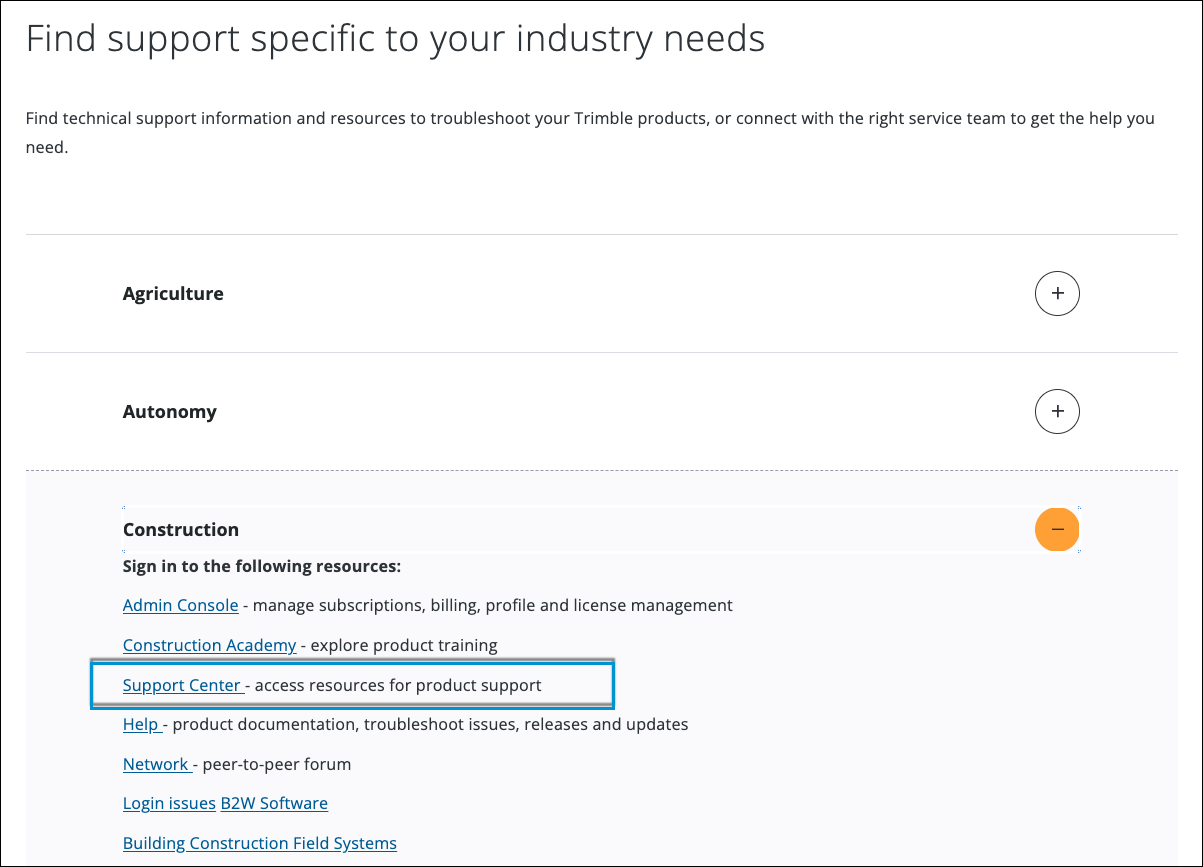
On the Support page, scroll down and expand the Construction section.
- Click Support Center.
If you aren't already logged in, sign in using your Trimble ID. After you login, or if you are already logged in, you'll be redirected to the Support Center automatically.
Accessing the Support Center
In order to access the Support Center, you must login using your Trimble ID and be the Account Owner or have access assigned to you by the person with the Account Owner role. If you need help with assigning roles to users on your account, see Managing Roles.
By default, only Account Owners have full access to the Support Center. If another user on the account needs to access the Support Center, the Account Owner must designate a level of access for that user. Account Owners can designate the level of Support Center access a user has when assigning a license, or update their access in the Admin Console under User Settings.

The following access levels can be assigned:
No Access – Users with no access are redirected to Trimble Help.
My Tickets – Users can submit and view the tickets they submit.
All tickets – Users have full access to the Support Center and all tickets created under that account.
Using the Support Center
The Support Center interface provides the tools you need to create new cases, keep track of your open cases, or review your closed support cases.

At the top of the page you'll find links to your Profile, the My Products page, and the Admin Console. You can also use the Search bar to search for your issue within Trimble's support pages.
Any support cases you've created will appear under My Support Cases. If you have full access to the Support Center, all cases associated with your account, even those created by other users, will appear under My Account's Cases.

If you are ready to create a new support case, follow these steps:
Click Create a Case.
Choose General Case for a support request unrelated to a specific product, or Product Case for product-specific technical support requests.
Both options prompt you to fill out a form specific to that type of case. All required information must be entered before you can submit a case.
If you have files you want to attach to your case, like screenshots or supporting documents, click Upload Files.
Once you've entered all required information and attached any files, click Send Message to create your case.