
Drawing Arcs
Your model is more than just straight lines. SketchUp can help you create curved geometry using arcs. The following video covers the basics of the arc tool.
Before using arcs in your model, there are a few things you’ll need to know:
An arc is a single entity that contains multiple connected line segments.
Although an arc is a single entity, you can use each line segment of that arc as an inference when modeling.
Arcs are made up of 12 segments by default. You can modify an arc to use more or less than 12. More segments will make an arc appear more smooth but may decrease performance, while fewer segments may cause a blocky appearance but help with rendering speed.
Arcs can define the edge
Arcs can divide a face.
SketchUp offers four tools to help you draw arcs in your model, each with its own unique method of creating an arc:
Arc: When this tool is activated a protractor appears to help you set the beginning and ending of the arc based on your desired angle. Your first click defines the center point, the second your endpoint, and the third finishes the arc creating an open arc made of straight-edge segments.
Pie tool: This tool works just like the Arc tool, but creates a closed pie shape that becomes a face.
2 Point Arc tool: Activating this tool changes your cursor to a pencil. Your first click defines one end of the arc, the second the other end. The third click defines the bulge or curve of the arc.
3 Point Arc tool: Activating this tool changes the cursor to a pencil. The first click sets your starting point, the second a pivot point, and the third defines the endpoint.
You can find the arc tools in a few different places:
The Getting Started or Drawing toolbars.
The Large Tool Set toolbar
The Draw > Arcs submenu

Drawing with the Arc Tools
Each of the four Arc tools requires a few operations to produce a result. With any of the Arc tools, you can use the Measurements box to enter precise measurements for values like the radius, angle, chord length, or bulge. For more information on using the Measurements box, see Precise Modeling with Measurements.
If you need to cancel the operation, or start over while drawing an arc, press ESC at any time during the Arc operation.
Arc and Pie
The Arc and Pie tools are handy when you need a specific angle. The Arc tool draws an open arc, and the Pie tool draws a closed, pie-shaped face.
To create an arc with the Arc or Pie tool, follow these steps:
- Select the Arc tool (
 ) or the Pie tool (
 ). The cursor changes to a pencil superimposed with the selected tools icon along with a protractor that indicates the plane you are drawing on.
 Click to set the center point for your arc and the plane you will draw your arc on.

Move the cursor to the starting point of your arc.
- Click to place the starting point of your arc. A straight dotted line representing the radius of your arc appears
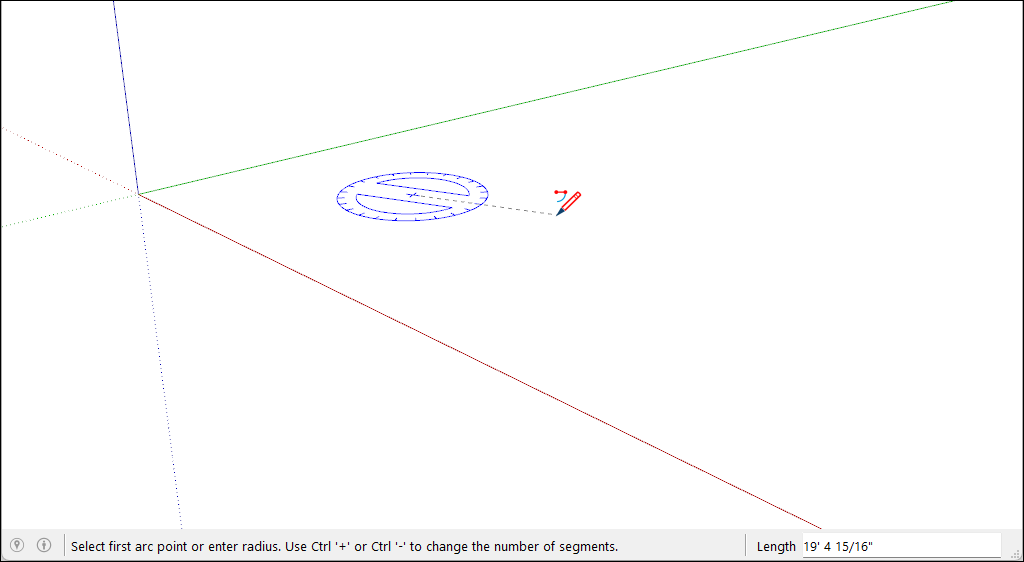
Move the cursor to the ending point of your arc.
- Click to place the ending point of your arc. You may also type an angle value and press Enter or Return. If you use the Arc tool, SketchUp creates an open arc. If using the pie tool, you will see a pie-shaped face.
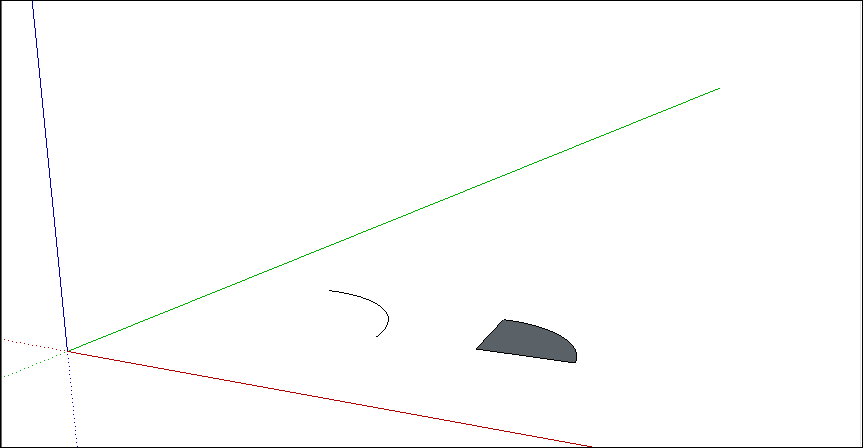
To change the number of segments in an arc or pie you’ve drawn:
Immediately after drawing the arc, type the number of sides you want and the letter S for sides then press Enter or Return. For example, typing 10s creates an arc with 10 line segments.
To increase the number of segments press Ctrl + (Windows) or Option + (macOS).
To decrease the number of segments press Ctrl - ( Windows) or Option - (macOS).
To set the number of segments in an arc based on the whole circle that arc would be a part of:
Immediately after drawing the arc, type the number of circle sides and the letter C for circle then press Enter or Return. For example, typing 20c bases your arc on a circle with 20 segments.
2-Point Arc tool
When you draw an arc with the 2-Point Arc tool, you set the starting point, the ending point, and the bulge distance. The distance between the starting and ending points is also known as the chord length.
To draw a 2-point arc, follow these steps:
- Select the 2 Point Arc tool (
 ). The cursor changes to a pencil with an arc.
 Click to place the starting point of your arc.
Move the cursor to the ending point of your chord. (Press the Esc key at any point during the operation to start over.)
Click to place the ending point or type a length value and press Enter . A straight line is created. The Measurements box changes to accept a Bulge value.
Move your cursor perpendicular to the straight line to adjust the bulge distance. Use your arrow keys to lock your movement to a specific plane as needed.

Click to set the bulge distance.
Immediately after you draw a 2-point arc, you can change the bulge, radius, or number of segments with the Measurements box. Here's how to change each value:
Bulge distance: After you finish creating a 2-point arc, the Measurements box is ready to accept a Bulge value by default.
Radius: You can specify an arc radius instead of a bulge distance. Type the desired radius in the Measurements box and add the letter R for radius.
Number of segments: Type a number and followed by the letter S for segments.
3- Point Arc
When you use the 3 Point Arc tool, you draw the arc based on a pivot point. Follow these steps to use the 3 Point Arc tool:
- Select the 3 Point Arc tool (
 ). The cursor changes to a pencil with an arc.
 Click to establish a starting point of the arc.
Move the cursor away from the starting point.
Click again to establish the second point. A small dot appears representing the arc’s pivot point.
Move the cursor away from the dot. An arc appears as you move the cursor. Use the arrow keys to adjust the drawing plane as needed.
When you like the shape of your arc, click again to finish creating the arc.
Editing an Arc Entity
You can edit the radius of an arc entity using the Move tool or in the Entity Info dialog box.
Warning: If an arc is transformed in a way that destroys its radial definition, like with a non-uniform scale operation, you can no longer edit the entity as an arc. At that point, the entity is no longer an arc and behaves like a freehand shape.
 ) selected, you can edit an arc entity using the following methods:
Adjust the midpoint: Hover the Move tool's cursor to locate the midpoint of the arc. Then, click and drag to adjust the arc.
Move an end point: Click and drag an arc's endpoint to adjust the arc's length and radius.
 ) to extrude a 2D face that includes an arc, SketchUp extrudes a special surface entity whose radius can also be edited. Use the Move tool to reposition the midpoint edge, and all the geometry that makes up the extruded arc will move accordingly.
To access your arc's Entity Info panel, context-click the arc you want to edit. From the menu, choose Entity Info. In the Entity Info panel, type a new value for the radius or number of segments.
