
Flipping, Mirroring, and Rotating
 )flips geometry, helps you re-orient flipped objects, and creates symmetrically oriented copies. You'll find the Flip tool in one of the following locations:
Getting Started toolbar
Large Toolset
Edit menu
To get started with the Flip tool, follow these steps:
Select the geometry you want to flip.
Activate the Flip tool. Three semi-transparent planes appear, each corresponding to the selection's cardinal orientation.If you activate the Flip tool before selecting geometry, clicking the geometry you want to flip will also start the Flip operation.
If needed, click and drag to adjust each plane. Inferences will appear when dragging to help with placement. Each time you click-and-drag a plane the result of the Flip operation changes.
Hover over a plane and click once. The geometry flips based on the position of the plane.

Tip: The arrow keys can also help you adjust the planes used to flip your geometry. Use the left arrow for green, right arrow for red, and up for blue.
Flip Tool Modifiers
Copy Mode
With the Flip tool active, pressing Ctrl (Windows) or Option (MacOS) enables Copy mode. With Copy mode active, click and drag the plane you want your copy to appear on the other side of. When you release your mouse button, SketchUp creates a flipped copy of your selected geometry.

Axes Mode
Axes mode flips an object using its parent (or context) axes. Activate Axes mode by pressing Alt (Windows) or Command (MacOS). When activated, your geometry will flip between the selected object axes orientation and the parent axes orientation.
Custom Flip Plane
If you need to flip something outside of the default axes, you can identify a custom flip plane. To flip using a custom plane, activate the Flip tool and hover over a face in the modeling window. A custom magenta-colored flip plane will appear. The magenta plane flips or copies in the same way as other planes.

Rotating geometry at an angle
 ), you can rotate geometry at any angle. To get started with the Rotate tool:
Select the geometry you want to rotate.
- Select the Rotate tool (). The Rotate tool's protractor-shaped cursor appears
Move the cursor around until it's on the plane you want to use for your rotation. Use the arrow keys to help you designate your rotation plane. To lock the plane, press Shift.
Tip: When you press and hold Shift to constrain the plane of rotation, you can press Alt (Microsoft Windows) or Command (OS X) to free the protractor from the inferenced plane.
Click to set your angle's vertex.

Clicking again sets the first point of your rotation angle.
Move the cursor in the direction of your rotation and click to complete the rotation angle. If you want a precise angle, use the measurements box to enter a value and press Enter.
Folding geometry along an axis
To fold geometry with the rotate tool, follow these steps:
Select the geometry you want to fold.
- Activate the Rotate tool ().
With the Rotate tool's protractor-shaped cursor, click and drag from one endpoint on the fold line to the other endpoint. Release the mouse button when you're done.
- Click at the starting point of the rotation.
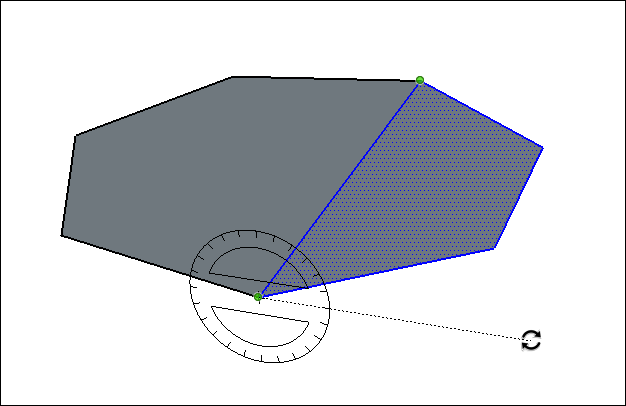
Move the mouse to rotate until you have folded the selected face.

Corner Inference Grips
When hovering over a component or group with the Rotate tool, gray inference points appear representing corner grips you can use to rotate that entity. When you hover over the point with your cursor, the point turns blue, allowing you to rotate the entity using that point as a grip.

If you move your cursor over a corner obscured by other geometry, the obscuring geometry becomes transparent to help you see the grip.

After finding your first grip, you can cycle through available grips using Command on Mac or Alt on Windows.
