
Create Your Own Materials
SketchUp’s material libraries offer a variety of useful materials you can add to your models. To meet your design intent, you may need to create materials using 2D image files as a starting point.
Tip: SketchUp 2025 introduced a new set of default material libraries along with an expanded SketchUp material library in 3D Warehouse. To access the classic material libraries you used in older versions of SketchUp and save them as a collection, see “Finding Older Material Libraries” in Migrating After Updating.
To create a new material from your own files or color codes, open the Materials panel and follow these steps:
- On the Select tab, click Create New Material (
 ). The Create Material dialog opens.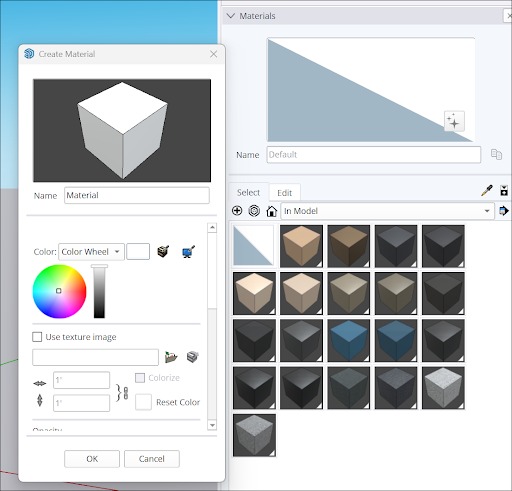
Type a name for the new material in the text field.
Use the color wheel to choose a color.
To use an image file, select Use texture image.
In the File Explorer window that appears locate and select an image file.
Adjust the texture size and opacity. If you have corresponding texture maps for your image texture, you can add and adjust them here.
Click OK. Your new material will appear selected in the In Model collection.
 ) in the image preview. For more information, see Generate Textures.