
Edge Styles
Edge styles add a different look to the edges in your model. When editing a style, SketchUp provides several options that can change how edges look in your model.

The following options are available under Edge Settings in the Styles panel:
Option | Example | Good to Know |
|---|---|---|
Edges | 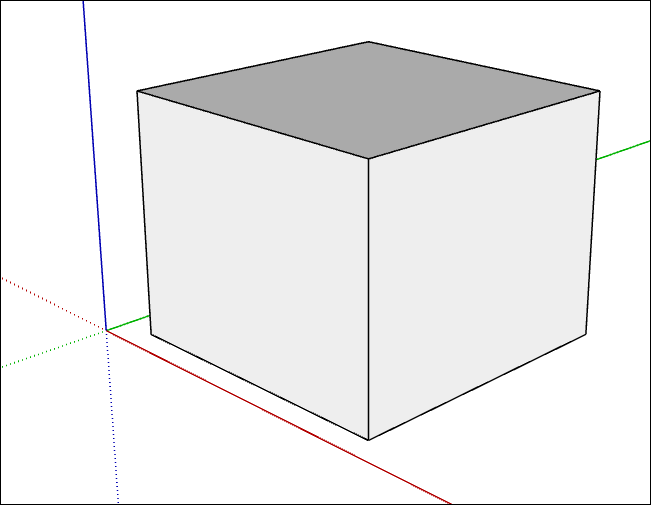 | Toggles the display of edges in your model. The example shows edges toggled on (selected). |
Back Edges | 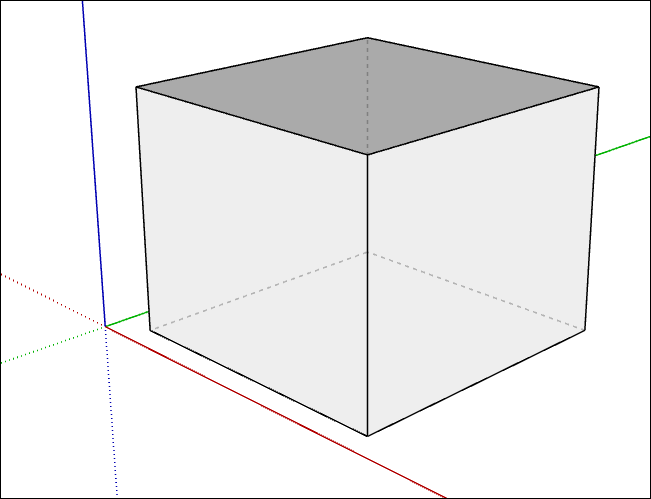 | Displays edges obscured by other edges in your model. Obscured edges appear as dashed lines. When selected, this setting disables the X-Ray face style. |
Profiles | 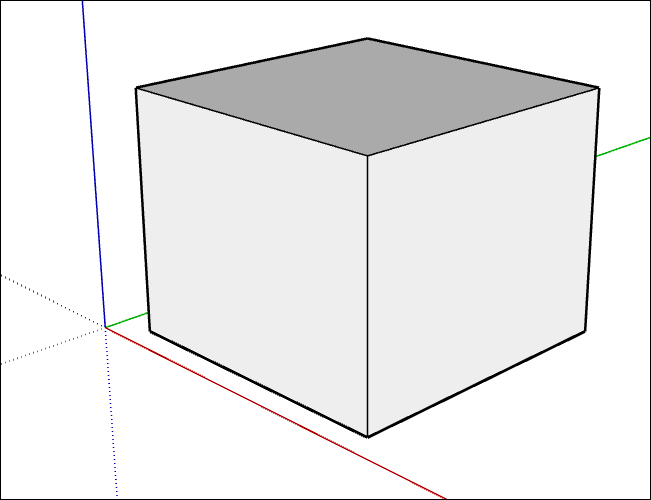 | When selected, this option emphasizes the outlines of major shapes in your model. You can choose a thickness, in pixels, for the profile lines. |
Depth Cue | 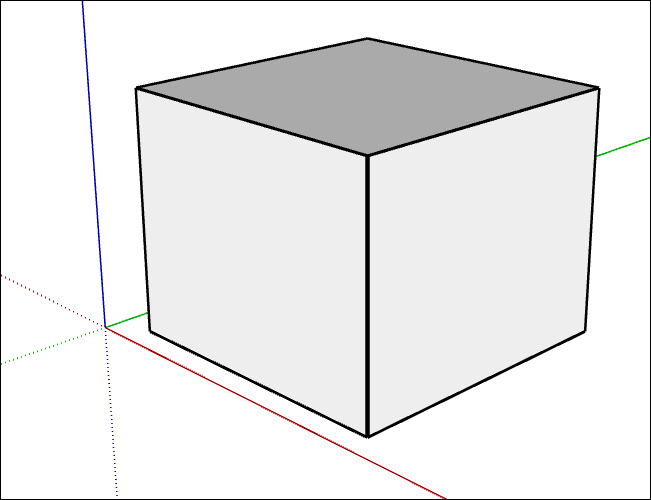 | When selected, this option emphasizes foreground lines over background lines. Enter a foreground line thickness in pixels. |
Extension | 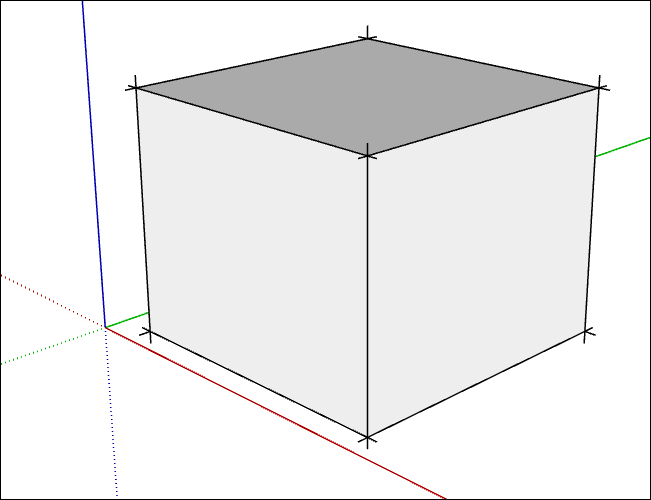 | Extends each line slightly past its endpoint for a hand-drawn appearance. This style does not affect inference behavior. Enter a length, in pixels, for the extension lines. |
Endpoints | 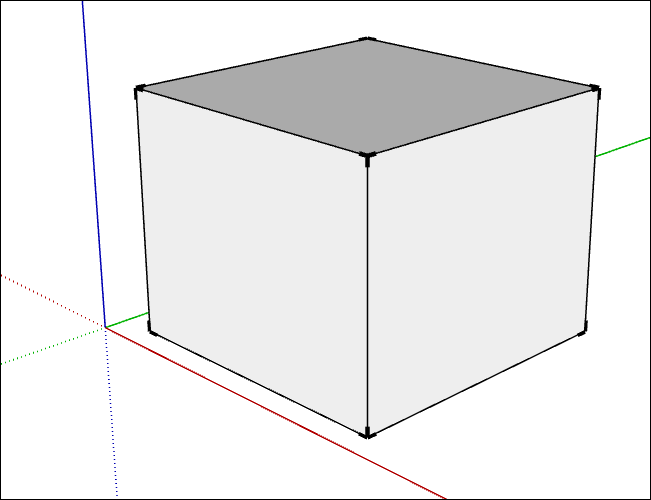 | Adds additional line thickness at the endpoints of lines. Enter a length, in pixels, for the length of the emphasized endpoints. |
Jitter | 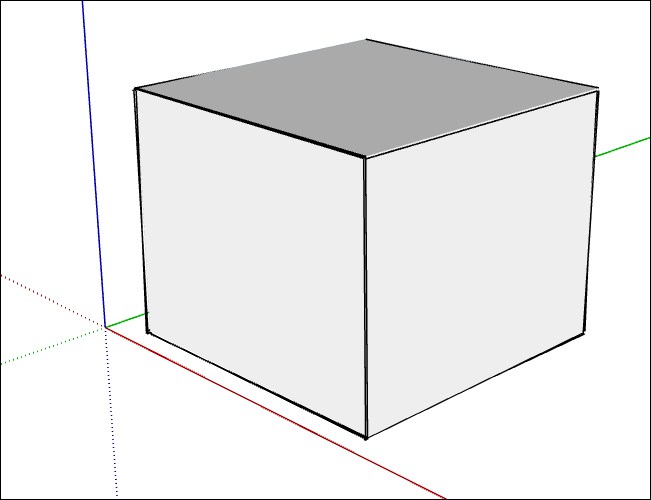 | Renders each line multiple times at a slight offset, giving your model hand-drawn sketched appearance. This edge rendering style does not affect inference behavior. |
Color: All Same | 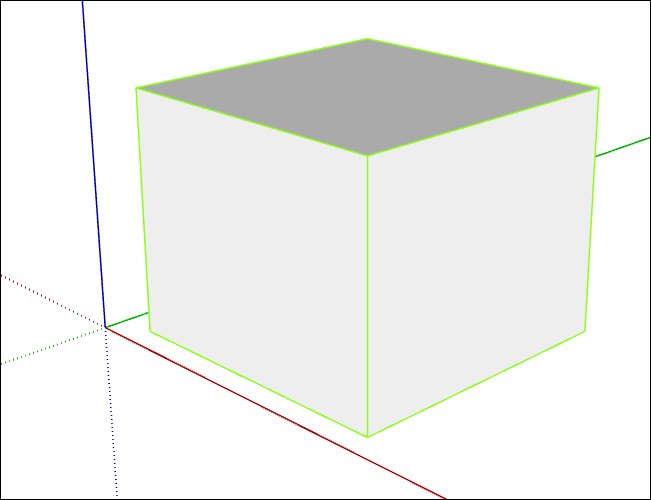 | Displays all edges in the color defined in color swatch. This option does not actually change any edge color assignments you may have made, but preserves them if you choose to view them again. |
Color: By Material | 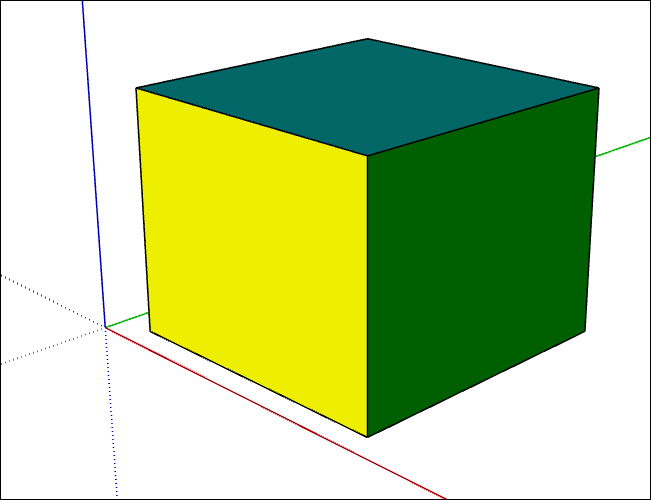 | Displays edges with an assigned material color, such as those painted with a color. |
Color: By Axis | 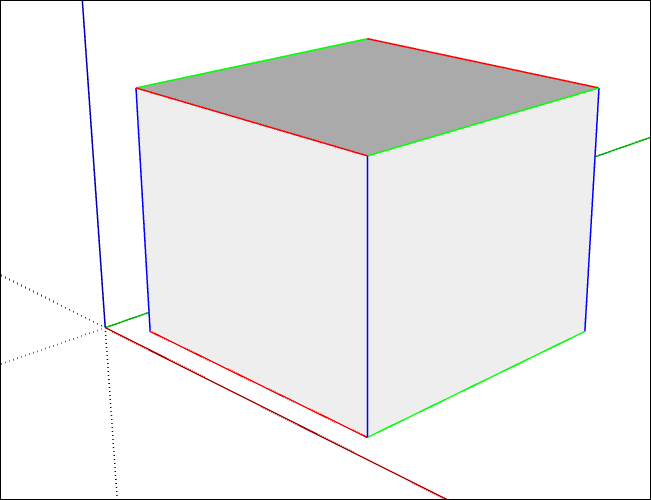 | Edges that aren't aligned with an axis are colored with the All Same color swatch. Also, an axis color doesn’t appear on hidden edges. |