
Opening Files
When you launch SketchUp for Web you have a few ways to open models you have previously worked on.
Recent Files
The Recent Files section of the SketchUp for Web Home page contains any recently opened model that still exists in your browser's cache.
Note : If you clear your browser's cache, or use another web browser or device to access SketchUp for Web, the Recent Files section will be empty.
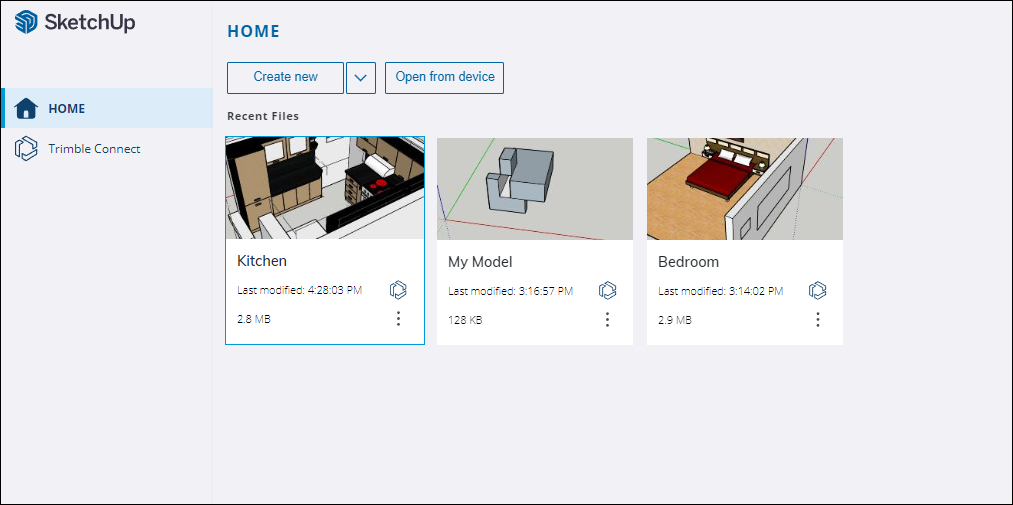
To open a file in the Recent Files section, simply click the file's tile.
Trimble Connect
SketchUp for Web saves your model in Trimble Connect by default. To open files saved to Trimble Connect, follow these steps:
Select Trimble Connect from the left side of the Home page.
Choose the project you saved your model to.
Select the model you want to open.
Opening Local Files
To open a locally saved .skp file, follow these steps:
On the SketchUp for Web Home page select Open from device .
Locate the file you want to open.
Select Open .
When you open a downloaded model, SketchUp for Web treats it as a temporary file until you manually save it.